A good classroom does not always need more technology. Sometimes, it simply needs the right technology used at the right moment. That is where classroom screen tools can make a real difference. Instead of switching between timers, slides, videos, websites, random name pickers, and classroom-management tools, teachers can bring many everyday functions together on one digital display.
Classroomscreen, the online whiteboard platform commonly associated with the term “classroom screen,” is designed specifically for teachers. Its current platform provides a collection of customizable widgets for classroom management, time management, student participation, lesson organization, and interactive activities. The company says the service is used in more than two million classrooms worldwide.
What makes the concept interesting is its simplicity. A teacher can put a timer beside written instructions, add a noise-level indicator, display a clock, randomly select a student, or embed a resource without constantly leaving the main teaching display. The result is not necessarily a more complicated lesson. Done well, it can actually make the classroom feel calmer and easier to follow.
What Is Classroom Screen?
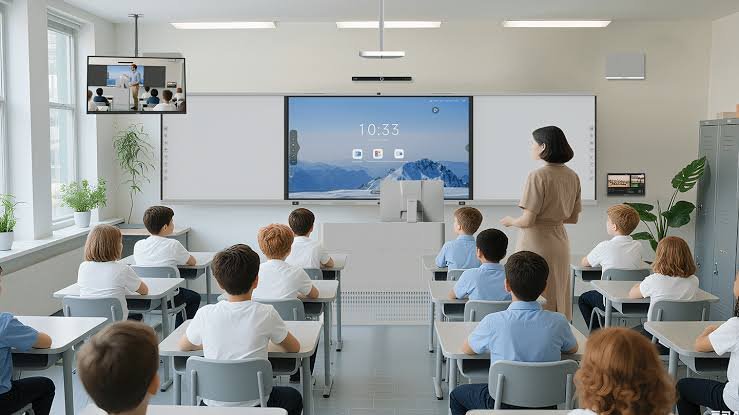
A classroom screen is essentially a digital display designed to keep important classroom information and tools visible in one place. Rather than treating the projector or interactive display as nothing more than a giant computer monitor, teachers can turn it into an active part of the lesson.
Classroomscreen describes itself as an online whiteboard created specifically for teachers. Its tools, called widgets, cover areas such as time management, student engagement, lesson management, classroom routines, and gamification. The current help center lists 26 widgets, although the exact collection can evolve as the platform is updated.
This approach is useful because teachers constantly make small decisions during a lesson. How much time is left? Who should answer? What volume level is appropriate? What should students be doing right now? What comes next? A well-designed classroom screen can make many of those answers visible without the teacher having to repeat them several times.
Why Classroom Screen Has Become Popular With Teachers
One major reason teachers like classroom screen tools is that they reduce unnecessary movement between different applications. A typical lesson might involve a presentation, a stopwatch, a video, a website, a random student selector, and a classroom noise reminder. Switching between all of those can interrupt the flow of teaching.
A centralized screen changes that experience. The teacher can prepare a screen containing the tools needed for a particular activity and then use it as the lesson progresses. According to the platform’s official materials, widgets can be combined to establish expectations, support time management, collect feedback, and include external resources.
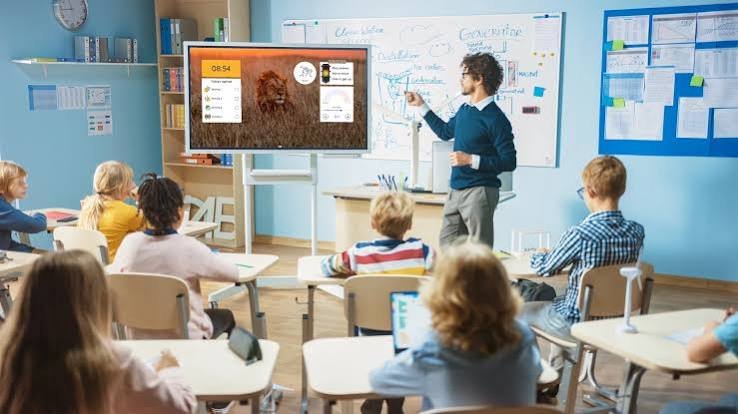
There is also a practical classroom-management benefit. Students do not always need another verbal reminder from the teacher. A visible timer can show how much work time remains. A traffic-light indicator can communicate classroom expectations. A timetable can show what is happening next. Those small visual cues can make routines more predictable, especially for students who benefit from clear visual information.
The Main Features Available on Classroom Screen
The strength of classroom screen software is the range of small tools available in one environment. Current Classroomscreen materials list tools including clocks, calendars, timers, visual timers, event countdowns, stopwatches, timetables, group makers, drawing tools, work symbols, traffic lights, images, sound-level monitoring, embedded content, video, QR codes, webcams, hyperlinks, PDFs, dice, scoreboards, and randomizers.
Time-management tools are particularly useful. A traditional countdown timer tells students when an activity ends, while a visual timer can make the passage of time easier to understand at a glance. A timetable can also provide a broader picture of the lesson rather than focusing only on the current task.
Other widgets are designed for participation and classroom interaction. Teachers can randomly select students, form groups, run simple games, track scores, or collect responses. The platform also offers polling features that allow students to participate using their own devices through a QR code or link.
How Classroom Screen Helps With Classroom Management
Classroom management is not just about controlling noise. It is about creating an environment in which students understand what is happening, what they should be doing, and what is expected from them. A classroom screen can support all three areas.
Consider a group-work activity. Instead of explaining the instructions repeatedly, a teacher can display the task, expected noise level, remaining time, and group information on the same screen. Students can look at the display when they forget a detail rather than immediately asking the teacher.
The sound-level widget is another practical example. Classroomscreen includes a tool for monitoring classroom noise and setting limits, while its traffic-light widget can visually communicate different behavior or noise expectations. These tools should support teacher judgment rather than replace it, but they can make classroom routines more consistent.
Visual communication can also be especially helpful during transitions. Moving from independent work to group work, for example, can become chaotic if every instruction is delivered verbally. A screen can show the next activity, the required materials, the time available, and the expected behavior at the same time.
Using Classroom Screen for Time Management
Time is one of the most valuable resources in a classroom. A five-minute delay at the beginning of several activities can eventually consume a significant part of a lesson. Classroom screen tools can help teachers make transitions and activity limits more visible.
A simple countdown timer is useful for worksheets, discussions, reading tasks, quizzes, experiments, and group activities. Instead of telling students that they have ten minutes and later announcing that five minutes have passed, the remaining time can stay visible throughout the task.
Visual timers can be even more effective for younger learners. Rather than relying entirely on numbers, a visual representation shows time gradually disappearing. This gives students a more intuitive sense of how much working time remains.
The benefit is not that students suddenly become perfectly punctual. The real advantage is that the teacher no longer has to act as the only clock in the room. Students can monitor the screen themselves, which can encourage greater independence and reduce repeated questions such as, “How much time do we have left?”
Classroom Screen for Student Engagement
Keeping students engaged is one of the biggest challenges in modern teaching. Simply placing technology in front of students does not automatically create engagement. The activity still needs a clear purpose. Classroom screen can help by making participation more immediate and varied.
For example, teachers can use a randomizer to select students for questions, use group-making tools to create teams, or use polls to collect opinions. The platform specifically promotes random name pickers and group makers as ways to involve students more fairly and effortlessly.
Polling can also make quieter students more comfortable participating. Instead of asking a question and hearing answers from only the most confident students, a teacher can ask everyone to respond. Students can vote from their own devices, and the results can provide an immediate snapshot of class understanding or opinion.
The important point is that engagement should not become entertainment for its own sake. A colorful background or animated widget may attract attention, but the strongest classroom screen activities are those that directly support learning. A quick poll about a reading passage, a random student selection for retrieval practice, or a timer for collaborative problem-solving has a clear instructional purpose.
Classroom Screen for Different Age Groups
A useful classroom screen should be flexible enough to work with different ages. Younger children often benefit from strong visual cues, simple instructions, icons, timers, and predictable routines. Older students may need a cleaner display focused on lesson objectives, resources, deadlines, and independent work.
For elementary classrooms, teachers might create a morning screen containing the date, timetable, welcome message, visual instructions, and a simple check-in activity. This can help students understand the routine as soon as they enter the room.
Middle school classrooms can use classroom screen tools for group activities, quick polls, discussion prompts, timers, and games. The platform’s own education materials highlight group work, shared instructions, and games as examples for middle-school use.
High school teachers can take a more minimalist approach. A screen might contain the day’s learning objective, task instructions, timer, QR code, or link to a resource. For older students, the value often comes from reducing friction rather than adding visual decoration.
Using Classroom Screen for Online and Hybrid Teaching
Classroom screen is not limited to traditional classrooms. The platform also provides guidance for using it as an online teacher, making the concept useful for remote and hybrid teaching environments.
In an online lesson, a teacher may need to communicate several things simultaneously. Students need to know what task they are completing, how long they have, where to find a resource, and when they should return to the main discussion. A shared visual screen can provide that structure.
Widgets such as timers, text, images, videos, hyperlinks, PDFs, and QR codes can support different parts of an online lesson. Teachers can also use interactive polling to gather responses from students rather than relying entirely on verbal discussion.
There is another advantage: consistency. If students see the same visual structure every lesson, they may become familiar with where instructions, timing, and resources appear. That familiarity can make remote learning feel more organized and less dependent on constant verbal directions.
How to Build an Effective Classroom Screen
The best classroom screen is not necessarily the one containing the most widgets. In fact, putting too many elements on one display can make it harder for students to identify what matters. A good design starts with the lesson objective and then adds only the tools that genuinely support it.
Begin with the information students need immediately. This could be a short instruction, learning objective, or activity title. Add a timer if the activity has a specific time limit. Add a noise indicator if classroom volume matters. Include a link, video, or PDF only when it is directly relevant.
Classroomscreen allows teachers to add widgets from its widget bar and then edit, move, copy, paste, pin, lock, layer, or remove them. Its interface also includes options for full-screen display and managing multiple screens within a screen deck.
It is also worth creating separate screens for different parts of a lesson. One screen might be used for the opening activity, another for direct instruction, and another for independent work. This is often more effective than trying to squeeze an entire lesson onto one crowded display.
Personalizing Your Classroom Screen
Personalization can make a classroom screen feel more connected to the teacher and students. Classroomscreen supports custom backgrounds, themes, embedded videos, and flexible widget layouts. Teachers can choose visuals that fit their subject, age group, school environment, or personal style.
However, personalization should remain functional. A background that looks attractive on a laptop may make text difficult to read on a classroom projector. Bright colors, busy photographs, and excessive decorations can compete with important instructions.
Recent Classroomscreen updates have expanded customization options. In June 2026, the platform introduced custom color selection for supported widgets, the ability to pin favorite screen decks, and the option to upload personal pictograms to the Timetable widget.
These improvements show an important direction for digital classroom tools: teachers want technology that can adapt to their existing routines rather than forcing everyone into the same template. Personalization is most useful when it improves clarity and efficiency.
Classroom Screen and Interactive Learning Activities
Interactive learning does not have to mean a complicated digital game. Sometimes, a simple randomizer or timer can turn a passive activity into something more participatory.
Imagine a classroom discussion in which the teacher asks a question and then uses a randomizer to select a student. The process can make participation more evenly distributed. A group maker can then create teams for the next activity without spending several minutes assigning students manually.
The dice and scoreboard tools can also support educational games. A teacher could use a virtual dice roll during a vocabulary challenge, award points for successful problem-solving, or create a quick review competition. Classroomscreen currently lists dice and scoreboard tools among its available widgets.
The trick is to keep the learning goal in control. Technology should make the activity smoother, not become the activity itself. When the digital tool disappears into the background and students focus on thinking, discussing, solving, creating, or practicing, the technology is doing its job well.
Classroom Screen Pricing and Free Options
One of the attractive aspects of Classroomscreen is that teachers can start without paying. The current Basic plan is listed at $0 per month and includes access to all 26 widgets, the annotation bar, remote poll voting, three saved name lists, a customizable widget-bar layout, and the template library.
The current Pro plan is listed at $3 per month when billed annually, or $36 per year. Pro adds features such as saving and sharing screens, organizing screens into folders, saving custom backgrounds, unlimited name lists, custom widget themes, additional backgrounds, and other organizational features.
Schools and districts can also use organization subscriptions with reassignable licenses and volume discounts. This makes the platform potentially useful beyond individual teachers, particularly when a school wants a standardized classroom-management or interactive-display solution.
For an individual teacher, the best approach is to start with the free version and determine whether the available tools actually improve daily teaching. If saving and organizing many lesson screens becomes important, upgrading can then be considered based on real classroom needs.
A Simple Classroom Screen Routine for a Typical Lesson
A classroom screen can be especially powerful when it becomes part of a predictable routine. For example, a teacher could begin the lesson with a welcome message, the date, a short warm-up task, and a visible countdown. Students know immediately what to do while the teacher takes attendance or prepares materials.
During the main lesson, the screen could switch to the learning objective and supporting content. A video, image, PDF, or hyperlink can be displayed when required. The teacher can keep only the most relevant widgets visible so students are not distracted by unnecessary information.
For independent or group work, the display could change again. A timer, instructions, noise-level indicator, and group information may become the most useful elements. At the end, a quick poll or check-in can help the teacher gauge how students are feeling or whether they understood the lesson.
This kind of structure turns classroom screen from a collection of gadgets into a consistent teaching system. The technology becomes predictable, and that predictability is often more valuable than flashy features.
Advantages and Limitations of Classroom Screen
The biggest advantage of classroom screen software is consolidation. Teachers can bring several classroom functions into one visible environment rather than managing a collection of disconnected tools. This can save small amounts of time throughout a lesson and make routines easier for students to understand.
Another advantage is flexibility. The same platform can support elementary activities, middle-school group work, high-school independent learning, online teaching, classroom games, and quick formative assessment. Its range of widgets means teachers can build very simple screens or more elaborate lesson displays.
There are limitations, too. A digital classroom screen depends on suitable hardware, a stable browser environment, and an effective classroom display. If the projector is difficult to see or the internet connection is unreliable, even a well-prepared screen can become frustrating.
There is also the risk of overdesign. Teachers may be tempted to add every available widget because the options are there. That can create visual clutter and distract students from the lesson. The strongest use of classroom screen is usually selective: choose a few tools, make them readable, and give students a clear reason to look at the display.
Tips for Getting Better Results From Classroom Screen
Start small. Instead of building a complicated screen on the first day, choose two or three features that solve actual problems in your classroom. A timer, text box, and clock may be more useful than ten decorative widgets.
Think from the student’s perspective. Before displaying a screen, ask whether students can understand it from the back of the room. Is the text large enough? Is the most important instruction obvious? Is the background distracting? Can students tell what they should do without asking for clarification?
Prepare screens ahead of time when possible. If you know that tomorrow’s lesson includes a ten-minute group activity, create that screen before class. The less time you spend constructing the display while students are waiting, the smoother the lesson will feel.
Finally, treat the screen as a teaching assistant rather than the teacher. It can display instructions, track time, support participation, and provide visual cues, but it cannot replace relationships, explanation, feedback, encouragement, or professional judgment.
Is Classroom Screen Worth Using?
For teachers who regularly use a projector, interactive board, or classroom display, classroom screen can be a practical addition to the teaching toolkit. Its biggest strength is not one individual widget. It is the ability to bring several small classroom needs together in one place.
The platform’s current feature set covers time management, classroom management, student engagement, media, visual communication, group activities, and basic gamification. Its free tier also makes it relatively easy for teachers to experiment before deciding whether they need additional paid features.
Ultimately, whether it is worth using depends on the teacher’s workflow. Someone who already has a simple and efficient system may not need another tool. But for teachers who frequently switch between timers, websites, videos, randomizers, polls, and classroom-management tools, a unified classroom screen can make everyday teaching noticeably smoother.
Conclusion
A classroom screen should not be about putting more technology into education simply because technology is available. Its real value comes from solving ordinary classroom problems in a simple, visible way. Teachers can use it to make instructions clearer, make time visible, encourage participation, support group work, manage transitions, and create interactive activities. Features such as timers, randomizers, polls, sound-level monitoring, QR codes, videos, PDFs, and drawing tools give teachers plenty of options without requiring a separate application for every task.
The best approach is to start with the needs of your students. Build screens that are readable, purposeful, and easy to understand. Use only the widgets that genuinely help. When classroom screen becomes part of a consistent routine rather than another distraction, it can quietly take care of many small tasks and give teachers more time to focus on what matters most: teaching.
Frequently Asked Questions About Classroom Screen
What is Classroom Screen used for?
Classroom screen is used to display classroom instructions, timers, schedules, interactive activities, classroom-management tools, and learning resources in one digital environment. Classroomscreen describes its service as an online whiteboard designed specifically for teachers.
Is Classroom Screen free?
Yes. Classroomscreen currently offers a free Basic plan. It includes all 26 widgets listed by the platform, along with features such as remote poll voting, limited saved name lists, a customizable widget-bar layout, and access to templates.
Does Classroom Screen work on different devices?
Classroomscreen’s pricing page states that the service is available on any device. This makes it suitable for classroom computers, laptops, and other supported devices used to operate a digital classroom display.
Can teachers use Classroom Screen for group work?
Yes. Teachers can use tools such as the Group maker and Randomizer to organize students for activities. The platform specifically highlights group work and student selection among its classroom uses.
Can students participate using their own devices?
Yes. The platform supports remote poll voting, and students can join certain polling activities through a QR code or link on their own devices. This can be useful for quick formative assessment, opinions, and class check-ins.
Is Classroom Screen useful for online teaching?
It can be. Classroomscreen provides dedicated guidance for teachers using the platform online, and tools such as timers, text, videos, PDFs, hyperlinks, and polls can support remote lessons.
What is the biggest benefit of Classroom Screen?
The biggest benefit is bringing multiple classroom tools into one visible workspace. Instead of switching between separate applications for common tasks, teachers can combine relevant widgets on a single screen and adapt the display to the lesson.
How can teachers avoid making the screen distracting?
Use fewer widgets and prioritize readability. Keep the most important information visually prominent, choose backgrounds that do not interfere with text, and remove features that are not needed for the current activity. A simple, purposeful screen is usually more effective than a crowded one.
YOU MAY HAVE MASSED